1. Getting Started
MountainDesk Ultimate is a multiplatform desktop control center for power users. It lets you chat with AI agents, execute system commands, automate browser workflows, schedule recurring tasks, switch between multiple AI models, and manage optional cloud-backed workspaces from Windows or macOS.
Installation
- Sign up for a plan at mountaindevs.com/MountainDesk/Landing#pricing. Choose Starter (Free), Professional (€19/month), or Enterprise (€49/user/month).
- After sign-up, you will receive setup instructions and platform-specific download links via email.
- Install MountainDesk Ultimate on Windows or macOS and launch the desktop application.
- On first launch you will be prompted to enter a license key or continue with the free Starter tier.
2. First Launch & Initial Setup
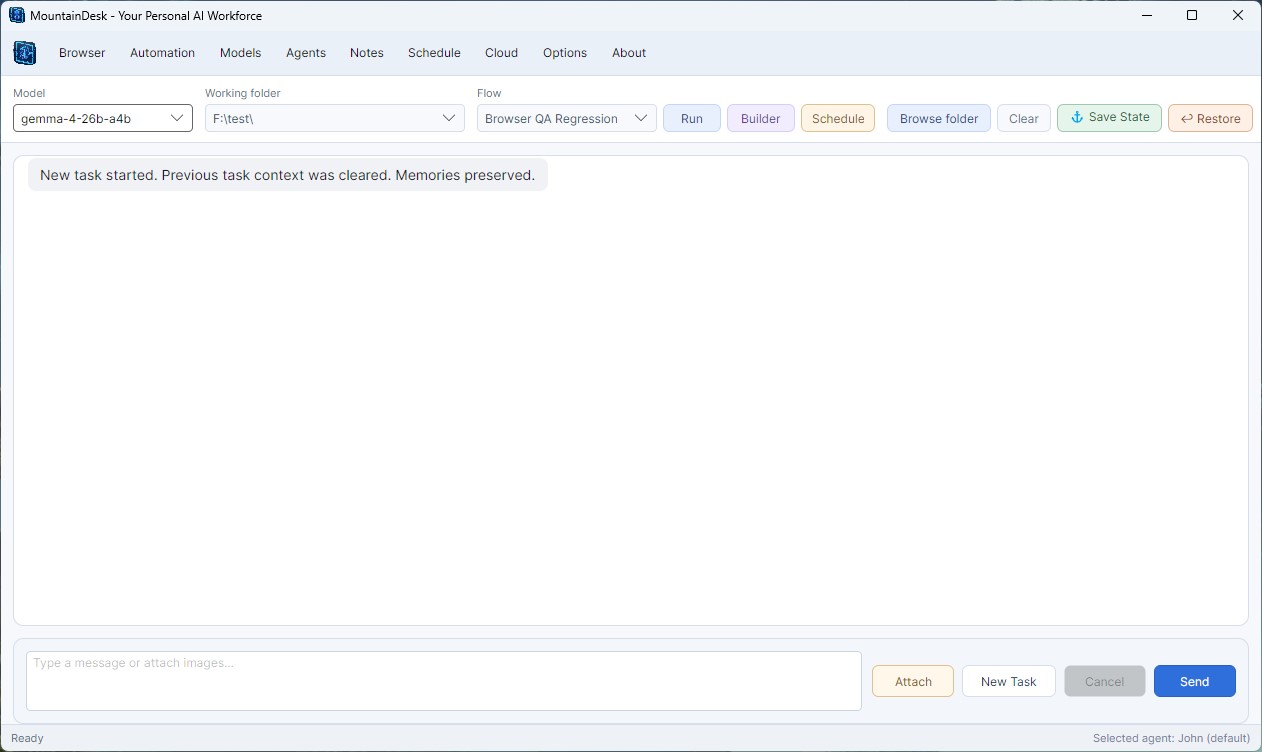 The main workspace - choose a model, set the working folder, run saved flows, create state anchors, and chat with your selected agent in one desktop window.
When MountainDesk Ultimate starts for the first time, the following sequence executes automatically:
- License check - The app checks for an existing local license file in the MountainDesk application data folder. If none is found, the License dialog opens. You can activate a Pro key or dismiss it to use the free tier.
- Model loading - The app loads your saved models from
models.dat. If no models file exists, a default model (gpt-4.1 via GitHub Copilot) is inserted automatically so you always have at least one model available. - Agent initialization - Four default agents are created: Assistant, FileSurfer, Commander, and WebSurfer. These can be customized later.
- Options loading - Timeout, theme, confirmation settings, and working folder are restored from
app-options.json. - Cloud workspace sync - If cloud features are enabled for your account, workspace state, prompts, and shared automations are synchronized securely.
- Welcome message - The chat window displays: "Welcome to MountainDesk. Chat with the assistant, or ask for system actions."
- Services start - The job scheduler, Slack integration, and Telegram bot are initialized (if configured).
What if no model is configured?
The app guarantees at least one model is always available through its EnsureDefaultModels
mechanism. If your models.dat file is empty or missing, the default gpt-4.1
model (pointing to the GitHub Copilot inference endpoint) is auto-inserted. However, this default model
ships with an empty API key. If you attempt to send a message without configuring a
valid API key, the request will fail and you will see an error in the chat output.
3. Model Configuration
MountainDesk Ultimate supports multiple AI models simultaneously. You can switch between them at any time using the model dropdown in the toolbar, and cloud-backed workflows can store model preferences per workspace or automation.
Model setup is now best understood from the live toolbar workflow: choose a saved model from the main window, or open Model → Manage Models to add another provider and make it available everywhere in the app.
Adding a Model
- Click Model in the menu bar, then choose Manage Models.
- In the Models dialog, fill in the following fields:
- Model Name - A display name, e.g.
gpt-4.1,claude-3-opus,llama-3. - URL - The API endpoint. Examples:
- OpenAI:
https://api.openai.com/v1/chat/completions - GitHub Copilot:
https://models.github.ai/inference/chat/completions - Anthropic:
https://api.anthropic.com/v1/messages - Local (Ollama, LM Studio):
http://127.0.0.1:11434/v1/chat/completions - Cloud gateway: your hosted OpenAI-compatible endpoint or team inference proxy
- OpenAI:
- API Key - Your secret API key from the provider. Leave empty for local models that don't require authentication.
- Model Name - A display name, e.g.
- Click Add to save the model.
- Select the new model from the dropdown in the main window to start using it.
Provider Auto-Detection
The provider is automatically determined from the model name:
- Names containing
claude→ Anthropic provider - Names containing
gptwith Copilot endpoint → Copilot provider - Everything else → OpenAI-compatible provider (works with any OpenAI-format API)
Model Settings
| Setting | Default | Description |
|---|---|---|
| Max Tokens | 32,000 | Maximum tokens in the AI response. Higher values allow longer outputs but cost more. |
| Temperature | 0.1 | Controls randomness. Low values (0.1-0.3) give precise, deterministic answers. Higher values (0.7-1.0) add creativity. |
Auto-Route Models (Cost Optimization)
When enabled in Options, simple messages (under 200 characters with no commands) are automatically
routed to a cheaper model (e.g., gpt-3.5-turbo) to save API costs, while complex
tasks continue to use your primary model.
4. Supported AI Providers & Models
OpenAI
All OpenAI chat models are supported, including:
gpt-4.1,gpt-4o,gpt-4-turbogpt-3.5-turbo(good budget option for simple tasks)o1-mini,o1-preview(reasoning models)
Endpoint: https://api.openai.com/v1/chat/completions
API Key: Obtain from platform.openai.com
Anthropic (Claude)
Claude models use a dedicated Anthropic API integration:
claude-sonnet-4-20250514,claude-3.5-sonnetclaude-3-opus(most capable)claude-3-haiku(fast and affordable)
Endpoint: https://api.anthropic.com/v1/messages
API Key: Obtain from console.anthropic.com
GitHub Copilot Models
If you have a GitHub Copilot subscription, you can use the GitHub AI inference endpoint alongside any other configured cloud or local model:
Endpoint: https://models.github.ai/inference/chat/completions
API Key: Your GitHub personal access token with Copilot scope.
Local / Self-Hosted Models
Any model that exposes an OpenAI-compatible API works with MountainDesk:
- Ollama -
http://127.0.0.1:11434/v1/chat/completions - LM Studio -
http://127.0.0.1:1234/v1/chat/completions - text-generation-webui -
http://127.0.0.1:5000/v1/chat/completions - vLLM, LocalAI - Any OpenAI-format endpoint
5. GitHub Copilot Integration
MountainDesk offers native integration with GitHub Copilot. If you have a GitHub Copilot subscription, you can use it to power your AI agents without any additional API costs.
Setting Up Copilot
- Open Model → Manage Models.
- Add a new model with the name
gpt-4.1(or any Copilot-supported model likeclaude-sonnet-4-20250514). - Set the URL to:
https://models.github.ai/inference/chat/completions - For the API Key, use your GitHub Personal Access Token with the Copilot scope enabled.
- Click Add and select the model from the toolbar dropdown.
Supported Copilot Models
The GitHub AI inference endpoint supports a wide range of models through your Copilot subscription:
gpt-4.1,gpt-4o- OpenAI models via GitHubclaude-sonnet-4-20250514,claude-3.5-sonnet- Anthropic models via GitHubo1-mini,o1-preview- Reasoning models via GitHub
Auto-Detection
MountainDesk automatically detects Copilot endpoints. When the URL contains models.github.ai,
the app switches to the Copilot provider pipeline, which handles authentication and response parsing
optimized for the GitHub inference API.
6. AI Image Generation
Professional & Enterprise
MountainDesk can generate images directly from the chat interface using AI image generation providers. Create diagrams, mockups, visual assets, and creative content without leaving the app.
Supported Providers
- OpenAI DALL-E - Generate images via
https://api.openai.com/v1/images/generations - Stable Diffusion - Use local or cloud-hosted SD endpoints
- Any OpenAI-compatible image API - Custom providers that follow the OpenAI image API format
How It Works
- Ask your AI agent to generate an image in natural language, e.g. "Generate a diagram showing the deployment pipeline".
- The agent produces a
generateimagecommand with your prompt and parameters. - MountainDesk sends the request to the configured image provider.
- The generated image is displayed inline in the chat and saved to your working folder.
Configuration
Configure image generation in Options → Image Generation:
- Provider URL - The API endpoint for image generation.
- API Key - Your image provider API key.
- Default Size - Image dimensions (e.g., 1024x1024).
- Default Quality - Standard or HD quality.
Example Prompts
Generate a professional flowchart showing user registration, email verification, and account activation steps.
Creative asset:
Create a modern logo concept for a tech startup called "NovaByte" - minimal, geometric, blue and white color scheme.
7. Prompting Guide & Best Practices
MountainDesk builds a system prompt from your Profile and Personality fields, plus agent-specific instructions. Good prompting dramatically improves results.
Profile & Personality
The Profile field (default: "Desktop automation assistant for Windows and macOS") tells the AI what it is. The Personality field (default: "Direct, reliable, and concise") shapes its tone. These are injected into every system prompt.
| Use Case | Suggested Profile | Suggested Personality |
|---|---|---|
| General automation | Desktop automation assistant for Windows and macOS | Direct, reliable, and concise |
| Software development | Senior software engineer specializing in C#, Python, and DevOps | Thorough, precise, explains reasoning |
| Data analysis | Data analyst working with CSV, Excel, and SQL databases | Analytical, detail-oriented, uses tables |
| IT support | IT administrator managing cross-platform desktops, services, and user provisioning | Step-by-step, patient, clear |
| Creative writing | Creative writing assistant for blogs, emails, and marketing | Friendly, engaging, adapts tone to audience |
Effective Prompt Patterns
Be Specific About the Action
Good:
List all .log files in C:\Logs that were modified in the last 7 days and delete any larger than 100MB.
Weak:
Clean up my logs.
Use Step-by-Step Instructions
1. Search for all .csv files in D:\Reports
2. Read the first file and show me the column headers
3. Create a summary of the file counts by extension
Provide Context When Needed
I'm working on a Node.js project in D:\Projects\myapp. Check if node_modules exists.
If not, run "npm install". Then run "npm test" and show me the results.
Ask for Confirmation Before Destructive Actions
Find all temporary files in C:\Temp older than 30 days. Show me the list first before deleting anything.
Prompt Tips for Command Generation
- The AI responds with JSON commands when it determines an action is needed. You do not need to write JSON yourself.
- If the AI describes what it will do but doesn't produce commands, the app automatically asks it to provide the runnable JSON.
- Mention file paths explicitly when possible - this helps the AI generate accurate commands.
- Use the Working Folder feature to avoid typing full paths repeatedly.
- For multi-step tasks, describe all steps in one message for better planning.
8. Agent Team System
MountainDesk uses a team of specialized agents. Each agent has a name, description (used as system prompt context), and set of aliases. The AI can route tasks to different agents based on the nature of the request.
Default Agents
| Agent | Aliases | Role |
|---|---|---|
| Assistant | assistant | General-purpose conversational AI. Chats naturally, includes JSON commands only when explicitly asked or when an action is needed. |
| FileSurfer | filesurfer, file surfer | Handles all file and folder operations - reading, writing, searching, copying, moving, and scanning directories. |
| Commander | commander | Orchestrates complex multi-step tasks. Decides which agent should act next and coordinates the workflow. |
| WebSurfer | websurfer, web surfer | Web navigation, search, site analysis, form filling, and browser automation. |
Customizing Agents
Open Agents from the menu to access the Agent Settings dialog. For each agent you can customize:
- Name - The display name shown in the chat.
- Description - The system prompt instructions that define the agent's behavior.
- Aliases - Alternative names the AI can use to route to this agent.
Agent definitions are persisted in agent-settings.json in the application directory.
How Agent Routing Works
When the AI produces a JSON response containing an agent field, the app resolves that
agent by checking aliases (case-insensitive), switches the active character, and forwards the
task description to the selected agent. This allows the Commander agent to delegate file work
to FileSurfer, web tasks to WebSurfer, etc.
Example agent routing JSON produced by AI:
{
  "agent": "FileSurfer",
  "description": "Scan the project folder and list all .cs files"
}
9. Command Execution Loop
MountainDesk's core power is its ability to execute commands on your system. When the AI determines that an action is needed, it produces JSON commands. The app parses, confirms (if configured), and executes them - then feeds results back to the AI for analysis.
Execution Flow
- You send a message describing what you want done.
- The AI analyzes the request and produces one or more JSON commands.
- If Read/Write Confirmations are enabled, a dialog asks for your approval.
- Commands execute against your system (files, shell, browser, etc.).
- Results are captured and sent back to the AI.
- The AI analyzes the output and either responds with a summary or issues follow-up commands.
- This loop continues for up to 5 rounds per message.
Command Confirmation Dialogs
When confirmations are enabled, a modal dialog appears before each command executes. The dialog clearly identifies the operation so you always know exactly what will happen before you approve it.
What the Dialog Shows
- Action type badge - READ (data accessed but not modified) or WRITE (data created or modified), color-coded for quick recognition.
- Specific resource details - The dialog always names the exact resource involved:
- File operations - full file path, e.g.
Read file: C:\project\readme.md - Registry operations - full key path and value name, e.g.
Write registry: HKLM\Software\MyApp\Version = 2.0 - Shell commands - the complete command line, e.g.
Run shell command: npm install - Web operations - the target URL, e.g.
Read page content: https://example.com - System tools - the tool being opened, e.g.
Open Device Manager (devmgmt.msc) - Process management - process name or PID, e.g.
Kill process: notepad - Credential operations - the site name, e.g.
Save credential for: github.com (user: admin)
- File operations - full file path, e.g.
Dialog Choices
The confirmation dialog offers three choices:
- Allow Once - Execute only this specific command.
- Allow All This Run - Execute all remaining commands in this execution loop without further prompts.
- Deny - Block this command and stop the execution.
Enabling Confirmations
Open Options from the menu. In the General tab you will find two independent toggles:
- Require Read Confirmation - prompts before any command that reads files, directories, registry keys, system info, credentials, or web content.
- Require Write Confirmation - prompts before any command that creates, modifies, or deletes files, registry values, credentials, or runs shell commands.
Both are off by default for a frictionless experience but are recommended for sensitive environments. Read and write confirmations are tracked separately - choosing "Allow All This Run" for writes does not auto-approve reads, and vice versa.
JSON Command Format
Commands are JSON objects with an action field and parameters. They can be sent individually or as arrays:
Single command:
{"action": "readfile", "path": "C:\\project\\readme.md"}
Array of commands:
[
  {"action": "dirlist", "path": "C:\\project"},
  {"action": "readfile", "path": "C:\\project\\config.json"}
]
10. Complete Command Reference
Below is every command MountainDesk can execute. You can ask the AI for any of these operations using natural language.
File & Directory Operations
| Command | Parameters | Description |
|---|---|---|
readfile | path | Reads file content (max 12,000 characters). |
mkfile | path, content? | Creates a new file with optional content. |
setcontent | path, content | Writes content to a file (overwrites existing). |
appendcontent | path, content | Appends content to end of a file. |
textreplace | path, search, replace | Replaces text within a file. |
rmfile | path | Deletes a file. |
mkdir | path | Creates a directory. |
rmdir | path | Deletes a directory recursively. |
dirlist | path, filter? | Lists files in a directory with optional search filter. |
scanfolder | path | Detailed folder scan: names, sizes, extensions, dates. |
copy | source, destination, filter? | Copies files or folders. |
move | source, destination, filter? | Moves files or folders. |
rename | path, newname | Renames a file or directory. |
exists | path | Checks if a path exists and returns its type. |
pwd | - | Prints current working directory. |
getinfo | path | Detailed file/directory info (size, dates). |
zip | source, destination | Creates a zip archive. |
unzip | source, destination | Extracts a zip archive. |
Search Operations
| Command | Parameters | Description |
|---|---|---|
findfile | path, pattern, recursive? | Finds files by name pattern. |
searchinfile | path, query, caseSensitive? | Searches for text in a specific file. |
searchinfiles | path, query | Searches text across multiple files in a directory. |
foldersize | path | Calculates folder size with extension breakdown. |
Shell Command Execution
| Command | Parameters | Description |
|---|---|---|
cmd | command | Executes a command via cmd.exe. |
powershell | command | Executes a command via PowerShell. |
Web & Browser Automation
| Command | Parameters | Description |
|---|---|---|
openurl | url | Opens a URL in the Playwright browser. |
websearch | query | Searches DuckDuckGo and returns results. |
websource | url | Gets raw HTML source via HTTP. |
readcontent | url, selector? | Reads rendered page content (JavaScript included). |
clicklink | selector, text?, href? | Clicks a link or button on the page. |
fillfield | selector, value | Fills a form field with a value. |
scrollpage | direction? | Scrolls the page and returns visible content. |
weblogin | url, username, password | Logs into a website (auto-saves credentials). |
Credential Management
| Command | Parameters | Description |
|---|---|---|
savecredential | site, username, password | Saves website credentials. |
getcredential | site | Retrieves saved credentials for a site. |
listcredentials | - | Lists all saved credential sites. |
deletecredential | site | Deletes saved credentials. |
System Information & Diagnostics
| Command | Parameters | Description |
|---|---|---|
systeminfo | - | Shows OS, machine name, memory, processors, RAM. |
disks | - | Lists disk drives with size and free space. |
processes | - | Lists top 50 processes by memory usage. |
killprocess | name or pid | Kills a running process. |
ipconfig | - | Shows network / IP configuration. |
environment | name? | Lists or reads environment variables. |
installedapps | - | Lists installed applications. |
screenshot | window? | Takes a screenshot (full desktop or specific window). |
ocr | window? | Performs OCR on screen or window content. |
Windows Registry
| Command | Parameters | Description |
|---|---|---|
readregistry | key, value? | Reads registry keys and values. |
writeregistry | key, value, data | Writes or sets registry values. |
System Management
| Command | Parameters | Description |
|---|---|---|
devicemanager | - | Opens Device Manager. |
taskmanager | - | Opens Task Manager. |
services | - | Opens Windows Services. |
controlpanel | - | Opens Control Panel. |
open | path or title | Opens a program, file, folder, or URL. |
openwith | path, application | Opens a file with a specific application. |
Scheduling & Notes
| Command | Parameters | Description |
|---|---|---|
schedule | title, prompt, runat, recurrence? | Schedules a task for later execution. |
listjobs | - | Lists all scheduled jobs. |
canceljob | id | Cancels a scheduled job. |
stickynote | title, content, color?, font?, size? | Creates a sticky note window. |
MCP & External Integrations
| Command | Parameters | Description |
|---|---|---|
mcptool | tool, arguments? | Calls a tool on a connected MCP server. |
11. Browser & Web Automation
MountainDesk uses Playwright (Chromium) for all browser automation. The Browser menu button opens a persistent Playwright browser window that the AI can interact with. The WebSurfer agent specializes in web tasks.
Persistent Browser Profile
The Playwright browser uses a persistent profile stored locally. This means cookies, saved passwords, and session data are preserved between launches - you can log in once and stay authenticated for future sessions. Anti-bot-detection measures are applied automatically to reduce the chance of sites flagging the browser as automated.
Opening the Browser
Click Browser in the menu bar to launch a Playwright Chromium window (defaults to Google).
If the browser window was previously closed, a fresh instance is created automatically.
The AI can also open pages programmatically via the navigate command.
Playwright Automation
Playwright handles JavaScript-heavy sites, login flows, form filling, and more:
- Requirement: Run
playwright installonce to install browser binaries. - Playwright handles page rendering, clicking, filling, scrolling, and credential management.
- The AI can chain multiple browser actions in sequence (navigate → fill form → click submit → read result).
- If the Playwright page or browser context is closed, a new instance is created on the next command.
Example Web Automation Prompt
Go to https://example.com/login, fill the username field with "admin"
and the password field with "mypassword", then click the Login button.
After login, read the content of the dashboard page and summarize it.
weblogin are auto-saved locally. Use
listcredentials and deletecredential to manage stored credentials.
Never share your app-options.json or credential storage files.
12. Flow Builder
Professional & Enterprise
The Flow Builder gives MountainDesk a visual automation layer. Instead of retyping the same multi-step orchestration, you can arrange prompt nodes, reusable templates, and command nodes on a canvas, then connect success and failure paths.
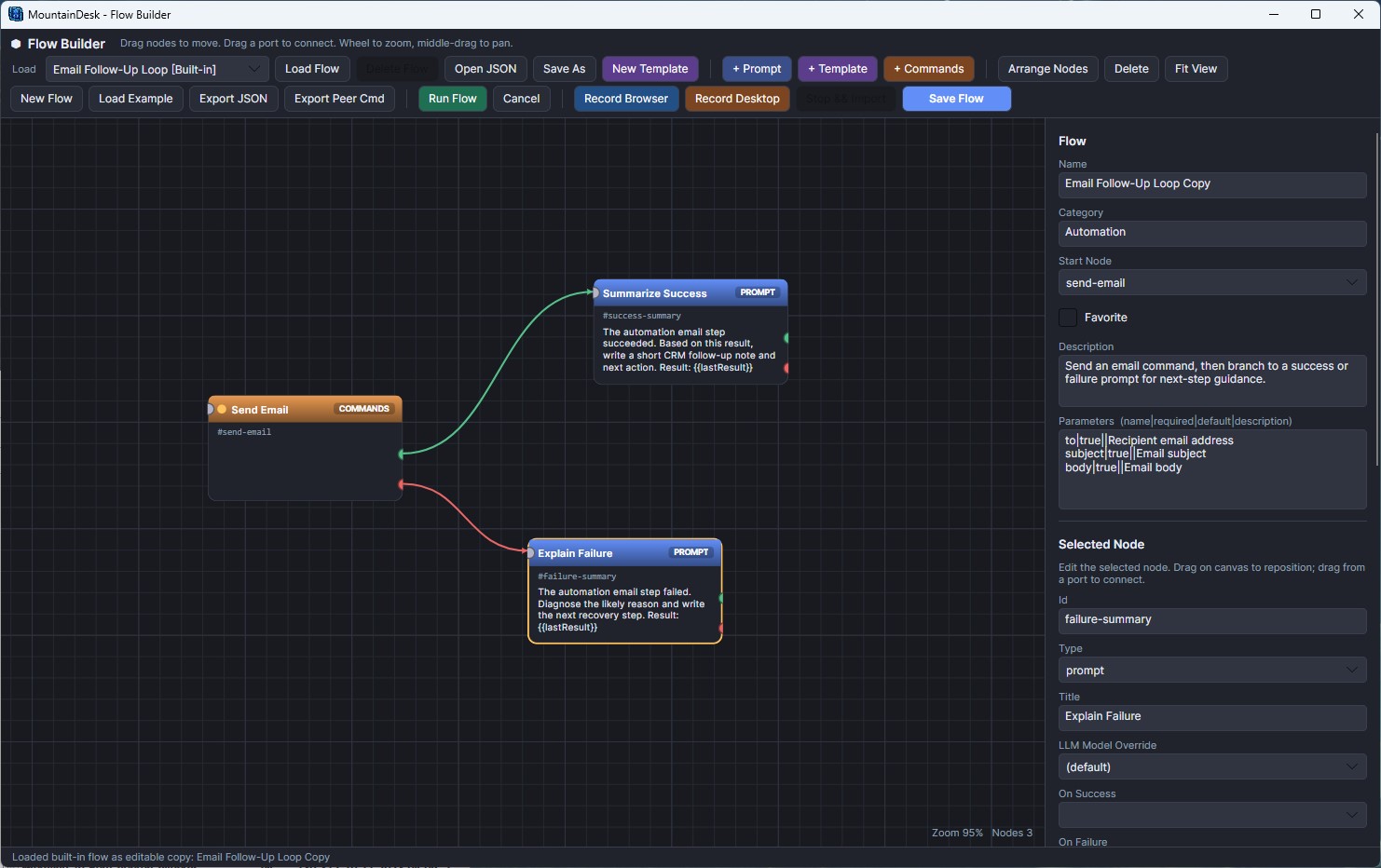 The Flow Builder canvas lets you combine prompt, template, and command nodes into reusable automation graphs with explicit success and failure branches.
What the Builder Adds
- Node canvas - drag prompt, template, and command nodes into a graph and connect ports visually.
- Branch control - define what happens when a node succeeds or fails without rewriting the whole prompt.
- Reusable templates - keep shared prompt fragments and parameterized templates ready for different jobs.
- One-click execution - run a saved flow directly from the main toolbar, the builder window, or the scheduler.
Typical Builder Workflow
- Open Builder from the main toolbar.
- Load an existing flow or create a new one.
- Add nodes such as Prompt, Template, or Commands.
- Connect each node's success and failure paths to control the next step.
- Save the flow and optionally expose it in the main Flow dropdown or schedule it for later execution.
13. Scheduled Jobs
Pro Feature
Schedule AI tasks to run automatically at specified times. Jobs can be one-time or recurring, and each can use a different model or working directory.
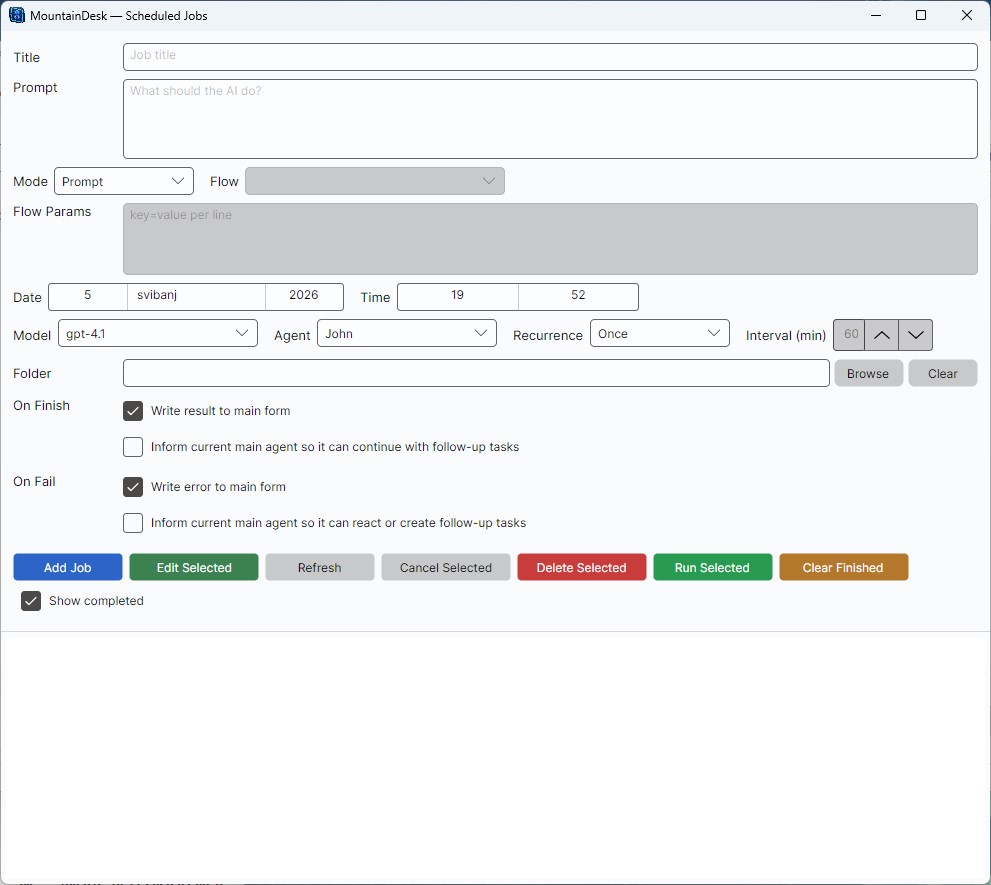 The Scheduled Jobs manager - choose prompt or flow mode, route work through a model and agent, define recurrence, and decide how the main workspace should react on success or failure.
Creating a Job
- Open Jobs from the menu or press Ctrl+J.
- Enter a Title and the Prompt (the message sent to AI when the job runs).
- Set the Date using the calendar dropdown picker, and the Time using the time spinner.
- Choose a Recurrence: Once, Daily, Hourly, or Custom interval (minutes).
- Optionally override the AI model and working directory for this specific job.
- Click Save.
Recurrence Options
| Mode | Behavior |
|---|---|
| Once | Runs one time, then marked as Finished. |
| Daily | Re-schedules every 24 hours after completion. |
| Hourly | Re-schedules every 60 minutes after completion. |
| Custom | Re-schedules every N minutes (you specify the interval). |
Job Execution
The scheduler checks for due jobs every 10 seconds. When a job fires, it sends the prompt to the AI, executes any resulting commands, captures all output into a report, and marks the job as Finished or Failed. If the main window is minimized, a tray notification appears.
Parallel execution: Multiple jobs can run at the same time - each job gets its own isolated AI conversation and history, so they never interfere with each other or with your active chat session.
Output isolation: Scheduled jobs do not inject messages into the main chat window. All progress and results are captured in the job's report. The main window shows only a brief ▶ Started / ✓ Completed / ✗ Failed banner per job so your conversation is never disrupted.
Live progress: Open a job's report while it is still running (double-click the job or click View Report) to watch progress appear in real time. The report window stays open and updates automatically as each step completes. When the job finishes, the final formatted report replaces the live stream.
Fresh start on every run: Each execution - including re-runs of recurring jobs and manual Run Now - starts with a cleared report so old output never mixes with new results.
Jobs are persisted in scheduled-jobs.json and survive application restarts.
Clearing Finished Jobs
Click the Clear Finished button in the Scheduled Jobs dialog to remove all completed and failed jobs from the list. A confirmation prompt appears before deletion.
Example Scheduled Job Prompts
Daily disk cleanup:
Check disk space on all drives. If any drive is below 10% free space,
find and list temporary files older than 7 days in C:\Temp and C:\Windows\Temp.
Hourly log monitor:
Read the last 50 lines of C:\Logs\app.log. If any line contains "ERROR"
or "CRITICAL", create a sticky note with the error summary.
14. Ghost Mode & Daily Memory Files
Professional & Enterprise
Ghost Mode lets MountainDesk keep working in the background. Instead of waiting for manual prompts, the app can monitor folders, watch application changes, react to system events, and launch AI-guided actions automatically.
What Ghost Mode Can Watch
- Folder arrivals - watch a folder for new or changed files with optional filters and subfolder support.
- App changes - detect when a process starts or stops.
- System events - react to USB insertions, network changes, low disk space, and idle timeouts.
- Background actions - attach an AI prompt to each trigger so the app can analyze the event and execute follow-up steps.
Configuring Ghost Mode
- Open Options and go to the Ghost Mode tab.
- Enable Ghost Mode and choose whether it should run minimized and show notifications.
- Set the polling interval for trigger checks.
- Add one or more triggers and define an Action Prompt for each trigger.
- Save your settings. Ghost Mode loads from
ghost-mode.jsonon startup.
Daily Memory Files
MountainDesk can organize persistent memory into date-stamped daily files so each workday has a clean, reviewable trail. That keeps context tidy and makes recurring automation easier to audit.
- Each day gets its own memory file based on the current date.
- Daily files are easier to review, archive, and hand off.
- Ghost Mode triggers can write progress notes and findings into the current day's memory file.
- Date-based memory improves traceability for recurring jobs, reports, and investigations.
Example Trigger Ideas
Folder watcher:
When a new CSV lands in D:\Inbox\Reports, inspect the headers, summarize the contents, and write the summary into today's memory file.
System event:
If free disk space drops below 2048 MB, create a recovery plan, save the findings to today's dated memory file, and notify me with the cleanup steps.
15. Working Folder Scope
The Working Folder feature confines AI operations to a specific directory. When set, the AI is instructed to prefer paths inside that folder and use it as the base path for any file operations where an explicit path is not given.
Setting the Working Folder
- Click the Browse button next to the working folder field in the toolbar.
- Select a directory from the folder picker.
- The status bar updates to show the current scope.
To clear the scope, click the Clear button. The setting is persisted across sessions in app-options.json.
How Scope Affects Behavior
- The folder path is appended to your prompt as context for the AI.
- Commands like
readfile,scanfolder,findfile, andsearchinfiledefault to this folder. - Each scheduled job can override this with its own working directory.
- Path enforcement: If the AI attempts to use an absolute path outside the working folder, the path is automatically redirected into the working folder. This ensures all file operations stay within the configured scope.
The working folder is saved in app-options.json and restored on next launch.
16. Sticky Notes
MountainDesk can create floating sticky note windows. Notes persist across sessions and can be created manually (via Ctrl+N) or by the AI during command execution.
- 6 color themes available for each note.
- Customizable font family, size, and bold settings.
- Notes are saved to
%LocalAppData%\MountainDesk\and restored on startup. - Close a note by clicking its close button; it will be removed from disk.
Ask the AI to create a note:
Create a sticky note titled "Meeting Agenda" with the content:
- Review Q1 results
- Plan Q2 sprint
- Assign new team leads
17. Slack & Telegram Integrations
Pro Feature
Slack
Connect MountainDesk to your Slack workspace. Messages sent to the MountainDesk bot are processed through the AI, and responses are posted back to the channel.
Configure in Options → Slack section:
- Bot Token - Your Slack bot OAuth token.
- Signing Secret - For verifying Slack request signatures.
- Webhook URL - Incoming webhook for posting messages.
- Socket Mode - Enable for real-time connection via App-Level Token.
Telegram
Connect a Telegram bot for mobile AI access:
- Bot Token - Obtain from BotFather.
- Chat ID - The chat ID for receiving messages.
Both integrations route messages through the same AI pipeline and command execution system.
18. MCP Protocol Integration
MountainDesk supports the Model Context Protocol (MCP) for connecting to external tool servers. MCP lets you extend MountainDesk's capabilities without increasing token costs - context gathering and tool execution are delegated to MCP-compatible servers.
What is MCP?
MCP is an open standard that allows AI assistants to discover and invoke tools exposed by external servers. Instead of feeding large amounts of context into the AI model (which increases token costs), the AI can call MCP tools to retrieve only the specific data it needs.
Configuring MCP
- Open Options from the menu.
- Navigate to the Socket tab.
- Enter the MCP Server URL (e.g.,
http://localhost:3000/mcp). - Check Enable MCP.
- Click Test MCP to verify the connection and discover available tools.
- Click Save.
How It Works
When MCP is enabled, MountainDesk connects to the MCP server on startup and discovers available tools.
The AI can then invoke these tools via the mcptool command:
Example MCP tool invocation by AI:
{"action": "mcptool", "tool": "get_weather", "arguments": {"city": "London"}}
Results from MCP tools are fed back to the AI for analysis, just like any other command output.
19. WebSocket Bridge
MountainDesk can connect to a WebSocket server for real-time bidirectional communication with external tools and services.
Configuring WebSocket
- Open Options from the menu.
- Navigate to the Socket tab.
- Enter the WebSocket URL (e.g.,
wss://your-server.com/ws). - Click Test Connection to verify connectivity.
- Click Save.
How It Works
When a WebSocket URL is configured, MountainDesk connects on startup and begins listening for messages. Incoming messages appear in the chat window. The AI can process and respond to WebSocket messages through the same command execution pipeline.
Messages use a JSON envelope format with type and data fields for structured communication.
20. Plan Comparison
MountainDesk offers three plans to fit individual professionals, power users, and enterprise teams. Start with the free Starter tier and upgrade when you need more.
| Feature | Starter (Free) | Professional (€19/month) | Enterprise (€49/user/month) |
|---|---|---|---|
| AI prompts per UTC day | 25 | Unlimited | Unlimited |
| Permitted use | Personal, non-commercial home use | Personal and commercial use | Personal and commercial use |
| Scheduled jobs per day | 2 | Unlimited | Unlimited |
| All AI models (OpenAI, Anthropic, local) | Yes | Yes | Yes |
| System commands (files, shell, etc.) | Yes | Yes | Yes |
| Agent team system | Yes | Yes | Yes |
| Dark mode and themes | Yes | Yes | Yes |
| Sticky notes | Yes | Yes | Yes |
| Drag and drop file attachments | Yes | Yes | Yes |
| GitHub Copilot integration | -- | Yes | Yes |
| AI image generation | -- | Yes | Yes |
| Web / browser automation | -- | Yes | Yes |
| Ghost Mode background triggers | -- | Yes | Yes |
| Date-based daily memory files | -- | Yes | Yes |
| Instant system state anchors | -- | Yes | Yes |
| Conversation history and memory | -- | Yes | Yes |
| Slack integration | -- | Yes | Yes |
| Telegram integration | -- | Yes | Yes |
| MCP protocol support | -- | Yes | Yes |
| Priority support | -- | Yes | Yes |
| Team seats | 1 | 1 | Unlimited |
| SSO and audit logs | -- | -- | Yes |
| On-premise deployment | -- | -- | Yes |
| Custom agent templates | -- | -- | Yes |
| WebSocket bridge | -- | -- | Yes |
| Dedicated support and SLA | -- | -- | Yes |
How the Daily Limit Works (Starter)
The Starter tier tracks usage locally with tamper-resistant cryptographic verification. Each day resets at midnight UTC. When you approach the limit, the status bar shows remaining prompts across main chat, coding, and image generation (e.g., "Starter: 2/25 messages used today"). Local and self-hosted models count toward the same limit. When the limit is reached, the Upgrade dialog appears. You can subscribe via Stripe to Professional (€19/month) or Enterprise (€49/user/month), or enter a license key to unlock unlimited access. Scheduled tasks are also limited to 2 per 24-hour period on the Starter tier.
21. Licensing & Activation
MountainDesk uses a license key to unlock paid features. Subscribe at mountaindevs.com for Professional (€19/month) or Enterprise (€49/user/month) via Stripe, then activate in-app.
Starter is licensed only for personal, non-commercial use at home. Use for a business, employer, office, organization, client, professional service, revenue-generating activity, or any other commercial purpose requires an active paid Professional or Enterprise license, including when MountainDesk uses local hardware, a self-hosted model, or the user's own API key.
Businesses and organizations may evaluate Starter internally for 14 consecutive days beginning with first business use, subject to the Starter limits. This evaluation is for assessing the software and is not licensed for routine production work, client deliverables, resale, or a paid managed service. Continued workplace or commercial use requires a paid license.
Offline and Connected Workflows
With a compatible local model already downloaded, local inference, local file processing, notes, system commands, local flows, and local image generation can remain entirely on the computer. A workflow is fully offline only when every model, file, command, trigger, and service is local. Websites, browser workflows, cloud providers and sync, Slack, Telegram, email and other online integrations, initial downloads, license activation or refresh, and update checks require a connection.
Activating Your License
- Open the License dialog from the menu bar (or when prompted at first launch).
- Enter your subscription email or the license key received after checkout.
- The app validates your subscription against the server and activates Pro features.
Expiration & Renewal
The status bar shows your remaining Pro days. When a license expires, the app reverts to the personal, non-commercial Starter tier with daily limits (25 prompts, 2 scheduled tasks). Your Stripe subscription renews automatically - simply keep your subscription active to maintain Pro access. Manage or cancel your subscription anytime from the product page.
22. Options Reference
Open Options from the menu to configure application-wide settings. All options are saved to app-options.json.
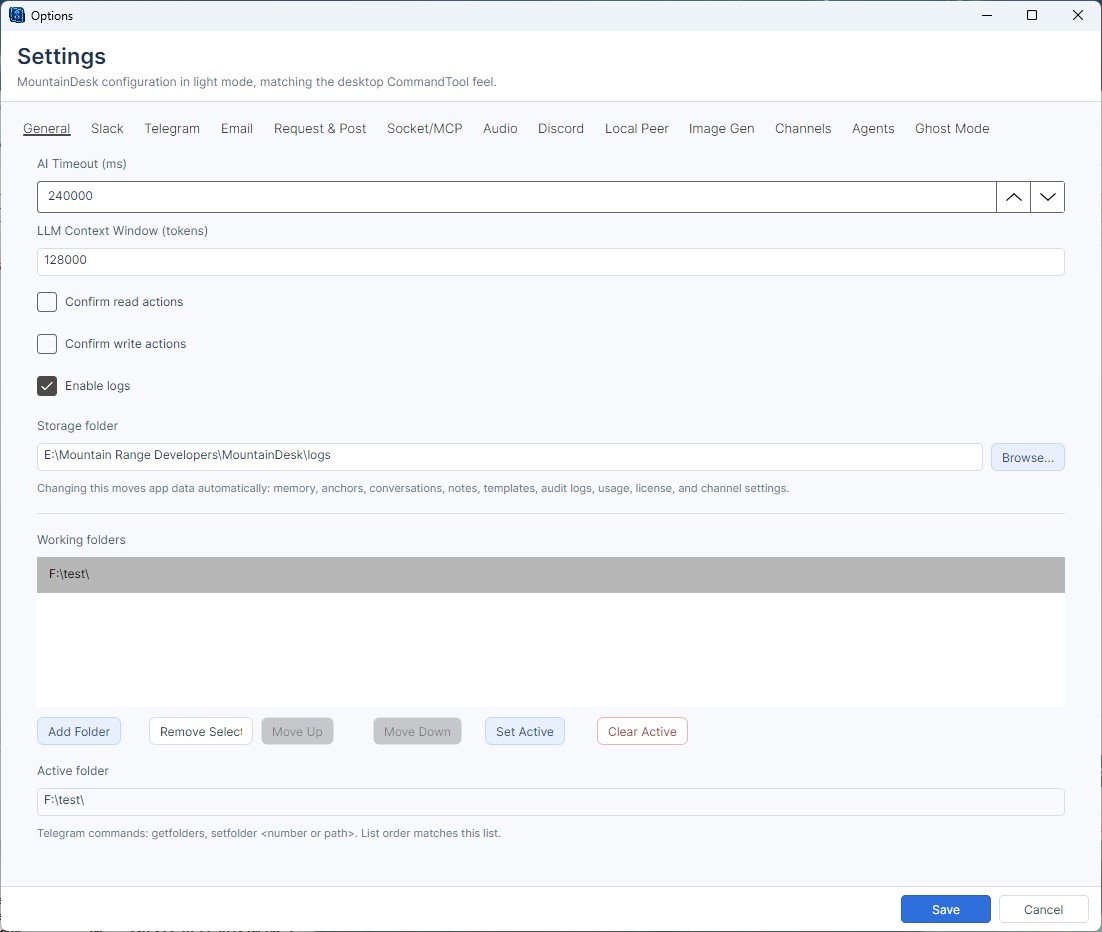 The Options window centralizes general runtime settings, provider integrations, audio and channel tabs, Ghost Mode, and the list of working folders used across the app.
| Option | Default | Description |
|---|---|---|
| AI Timeout (ms) | 120,000 (2 min) | Maximum time to wait for an AI response. Range: 1,000-600,000 ms. |
| Require Read Confirmation | Off | Ask before executing commands that read files, directories, registry keys, system information, credentials, or web content. The dialog shows the exact resource being accessed (file path, registry key, URL, etc.). |
| Require Write Confirmation | Off | Ask before executing commands that create, modify, or delete files, registry values, credentials, or run shell commands. The dialog shows the exact resource being modified (file path, registry key and value, shell command, etc.). |
| Persist Conversations | On | Save conversation history to disk for later retrieval. |
| Auto-Route Models | Off | Route simple messages to a cheaper model to save API costs. |
| Cheap Model Name | - | Model name for auto-routing (e.g., gpt-3.5-turbo). |
| Theme | Light | Light or Dark. Toggle with Ctrl+U. |
| Daily Message Limit | 10 | Maximum free-tier messages per day. |
| Enable Analytics | Off | Usage analytics tracking. |
General Workspace Settings
The General tab is where most teams start: timeout and context size, read/write confirmation behavior, log settings, the storage root, and the ordered list of working folders that can be activated from the main window.
Slack Configuration
Bot Token, Signing Secret, Webhook URL, Events Port, Socket Mode - configure in the Slack section of the Options dialog.
Telegram Configuration
Bot Token, Chat ID, Webhook URL - configure in the Telegram section of the Options dialog.
Socket & MCP Configuration
Configure external integrations in the Socket tab of the Options dialog:
| Option | Default | Description |
|---|---|---|
| WebSocket URL | - | WebSocket server URL for real-time communication with external tools (e.g., ws://localhost:8080). |
| MCP Server URL | - | Model Context Protocol server endpoint (e.g., http://localhost:3000). |
| Enable MCP | Off | Connect to the MCP server at startup and expose its tools to the AI agent. |
Ghost Mode Configuration
Configure background automation in the Ghost Mode tab of the Options dialog:
| Option | Default | Description |
|---|---|---|
| Enable Ghost Mode | Off | Turns on trigger monitoring and background prompt execution. |
| Run Minimized | Off | Keeps Ghost Mode active without leaving the main window open. |
| Show Notifications | On | Shows a local alert when a trigger fires or an action completes. |
| Polling Interval | 10 seconds | How often MountainDesk checks process and system-event triggers. |
| Trigger Action Prompt | - | The AI instruction executed when the trigger fires. |
Memory File Behavior
When conversation persistence and memory are enabled, MountainDesk can write memory into daily date-based files for cleaner recall, easier audits, and simpler handoffs between sessions.
23. Keyboard Shortcuts
| Shortcut | Action |
|---|---|
| Enter | Send message |
| Ctrl+N | Create a new sticky note |
| Ctrl+E | Export current conversation |
| Ctrl+S | Save current conversation |
| Ctrl+H | View conversation history |
| Ctrl+J | Open Scheduled Jobs dialog |
| Ctrl+U | Toggle theme (Light / Dark) |
24. System Requirements
| Requirement | Details |
|---|---|
| Operating System | Windows 10/11 or macOS 13+ |
| Runtime | Bundled desktop runtime included with the installer |
| RAM | 4 GB minimum, 8 GB recommended |
| Disk Space | ~50 MB for the application + Playwright browsers (~500 MB if using web automation) |
| Internet | Required for cloud AI models and synced cloud features. Not required for local models (Ollama, LM Studio) when working offline. |
| Playwright (optional) | Run playwright install for browser automation features. |
24. Troubleshooting
"There was an error with the AI response"
- Check that your model has a valid API key configured (Model → Manage Models).
- Verify the API endpoint URL is correct.
- If using a local model, ensure the server is running (e.g.,
ollama serve). - Check your internet connection for cloud models.
Commands are not executing
- Ensure Write/Read Confirmation dialogs are not blocking - check if a confirmation popup is hidden behind other windows.
- Verify the AI response contains valid JSON. If it does not, try rephrasing your request more specifically.
- Check the Working Folder scope - if set to a directory that doesn't exist, commands may fail.
Daily message limit reached unexpectedly
- The counter resets at midnight UTC, not local time.
- Each command-loop round counts as part of the same message (does not increment the counter).
- To check remaining messages, look at the status bar at the bottom of the window.
License won't activate
- Double-check the key you received after subscribing - copy-paste to avoid typos.
- Ensure you have an internet connection for initial activation.
- If the activation server is temporarily unreachable, the app grants offline access while you retry.
Playwright browser automation not working
- Run
playwright installfrom a terminal in the application directory to install required browsers. - Some websites block automated browsers. Try adding a delay between actions in your prompt.
Application won't start
- Ensure .NET 8.0 Desktop Runtime is installed: Download .NET 8.0
- Try deleting
app-options.jsonandmodels.datto reset to defaults. - Run from an elevated (administrator) command prompt to see error output.
25. FAQ
Do I need my own API key?
Yes. MountainDesk connects to AI providers using your API key. You bring your own OpenAI, Anthropic, GitHub Copilot token, cloud gateway credentials, or run a local model. The subscription fee covers the desktop application, not AI API usage.
Can I use multiple models at the same time?
You can configure as many models as you like and switch between them via the dropdown. With Auto-Route enabled, simple queries go to a cheaper model automatically. Scheduled jobs can each specify a different model.
Is my data sent to any server?
Your prompts and command results are sent only to the AI provider or cloud service you configured (OpenAI, Anthropic, GitHub Copilot, your cloud gateway, or your local server). MountainDesk does not send model traffic to Mountain Range Developers unless you explicitly enable a MountainDesk cloud feature such as synced workspaces. License activation may contact the activation endpoint once.
Can the AI delete files or break my system?
The AI can only execute commands that MountainDesk supports. Enable Read Confirmation and Write Confirmation in Options to review every command before it runs. Using a Working Folder scope further limits the AI's operational area.
Can I use MountainDesk offline?
Yes, with a locally hosted model (Ollama, LM Studio, or similar). Configure the model
endpoint to http://127.0.0.1:<port>/v1/chat/completions and leave
the API key empty. No internet connection is required.
What happens when my Pro subscription expires?
The app reverts to free tier with a 4-message daily limit. Your models, agents, settings, and conversation history remain intact. Scheduled jobs will not execute. Renew your subscription at mountaindevs.com and enter a new license key to restore Pro features.
Does MountainDesk Ultimate support macOS?
Yes. MountainDesk Ultimate now ships for both Windows and macOS. Desktop integrations and permissions differ slightly by platform, but the core workflow, model management, scheduled jobs, and cloud workspace features are available across both.
What local models work best?
For command generation, models with strong instruction-following are recommended:
llama-3-70b, mixtral-8x7b, codestral, or
deepseek-coder-v2. Smaller models (7B parameters) work for simple tasks
but may struggle with complex multi-step command chains. Use at least a 13B+ parameter
model for reliable automation.
How do daily memory files work?
MountainDesk can split persistent memory into date-stamped daily files. That gives you a clean record for each day, which is especially useful for Ghost Mode triggers, recurring jobs, and audit trails.
26. Roadmap & Future Features
MountainDesk is under active development. Below are planned features and improvements for upcoming releases, based on user feedback and community input.
Email Integration
Send and receive emails directly from the AI agent. Compose via SMTP (Gmail, Outlook, custom servers), read and summarize inboxes via IMAP, extract attachments, and auto-reply with AI-generated responses.
Cloud Storage Operations
Upload, download, list, and sync files with cloud providers like AWS S3, Azure Blob Storage, and Google Drive. A dedicated CloudSurfer agent for managing remote storage.
Database Querying
Execute SQL queries against SQL Server, MySQL, PostgreSQL, and SQLite databases. Browse schemas, run stored procedures, and export results to CSV or Excel - all through natural language.
Git & Version Control
Clone, pull, push, commit, and branch from within the chat. Generate commit messages, review diffs, and analyze repository history with AI assistance.
Batch Job Workflows
Chain scheduled jobs into pipelines (Job A → Job B → Job C) with conditional branching, parallel execution, and dependency graphs for complex automation sequences.
Voice Assistant
Text-to-speech for AI responses and speech-to-text for hands-free input, using native platform speech services for a fully voice-driven automation experience.
Screenshot & OCR Commands
Capture screenshots of the full desktop or individual windows, and extract text from images using built-in OCR. Useful for monitoring, reporting, and visual data extraction.
Prompt Templates
Save and reuse common prompts with variable placeholders. Build a library of templates for recurring tasks and share them across scheduled jobs and agents.
Custom Command Plugins
A DLL-based plugin system that lets you define your own JSON commands, extending MountainDesk's capabilities without modifying the core application.
REST API & Webhook Commands
Send HTTP requests to external REST APIs and webhooks directly from the command loop. Trigger AI workflows from external events and integrate with third-party services. (WebSocket and MCP integrations are already available - see sections 14 and 15.)
27. Community & Support
Need help, want to share a workflow, or just chat with other MountainDesk users? Join the official community channels.
Discord
Our primary community hub. Get real-time help, share tips, report bugs, and discuss upcoming features with other users and the development team.
Subscribe
Get Professional access for €19/month or Enterprise for €49/user/month via Stripe. Your subscription directly funds development and new features.
Bug Reports & Feature Requests
Found a bug? Drop details in the Discord #support channel with your OS version, model configuration, and steps to reproduce. Feature requests are welcome in #suggestions.
Ready to Get Started?
Sign up for a plan or explore the documentation to learn more.